How to Manage and Edit Documents
Sky provides a complete set of tools to organize, review, and modify your case documents. You can rename categories and sections, move documents between folders, split or merge files, rotate pages, run text recognition (OCR), and delete unnecessary content — all directly within the document viewer.
Step 1: Open Case
Navigate to the Cases page and select the case where you want to organize or edit documents. Opening a case provides access to all related files and document tools.

Step 2: Launch Sky
Click Launch Sky to open the document workspace. The interface includes the document list on the left, the page viewer in the center, and the tools panel on the right for managing document actions.

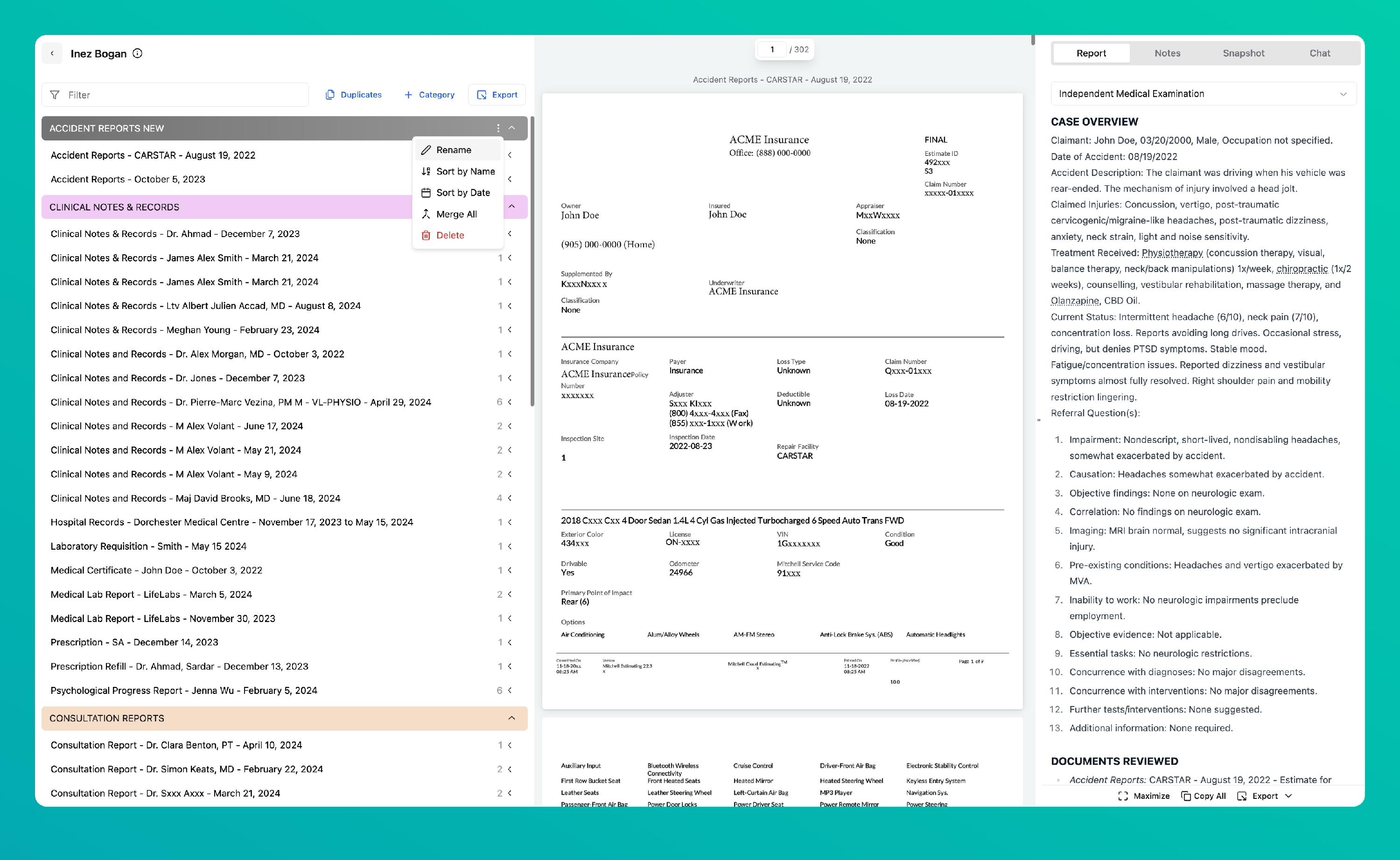
Step 3: Rename Category
In the document list, click the ⋯ next to a category and select Rename to update its title. Use clear, descriptive names to make document navigation easier for your team.
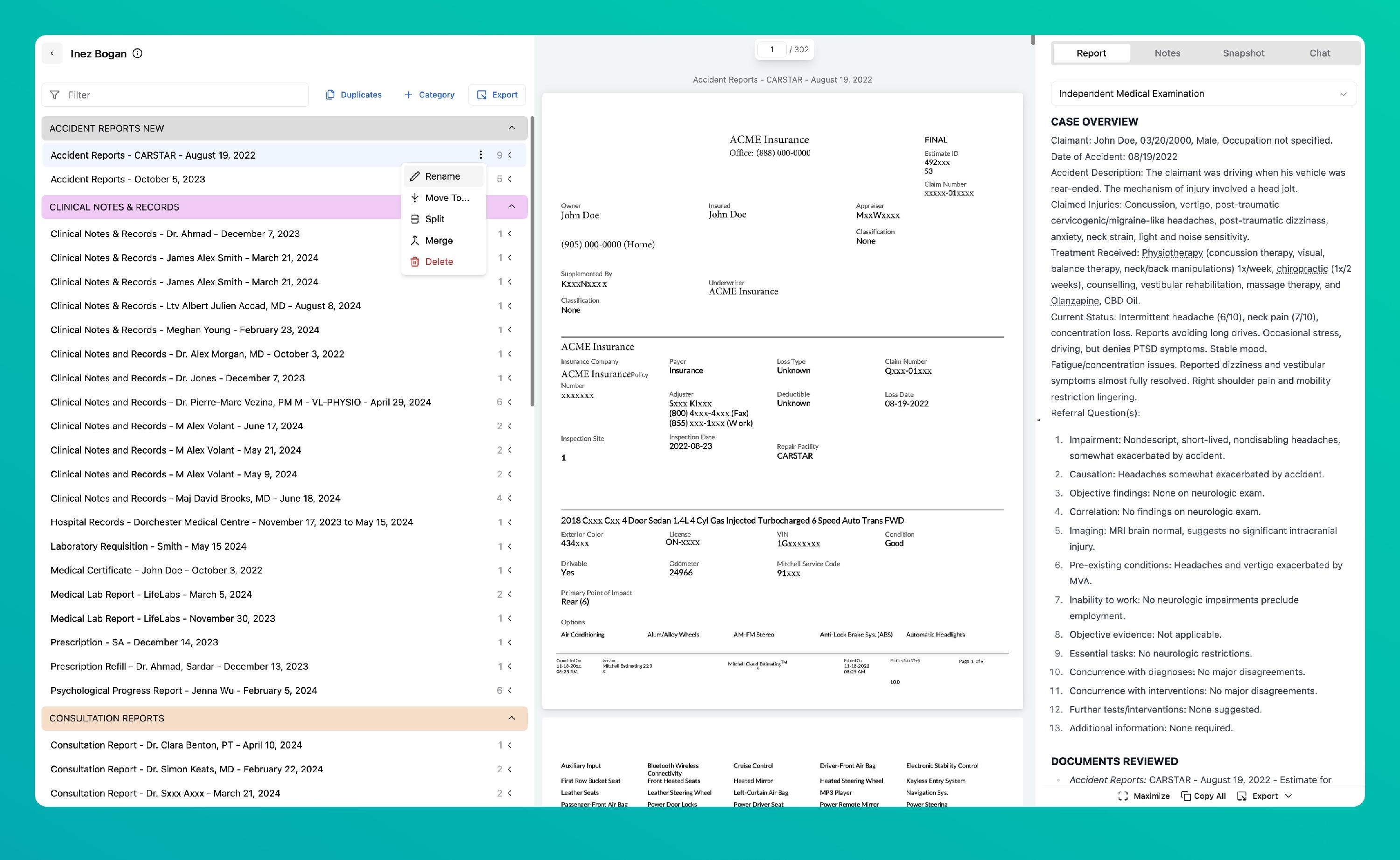
Step 4: Rename Section
Click the ⋯ next to a section and choose Rename to update the section title. The change is applied instantly and visible to all collaborators.
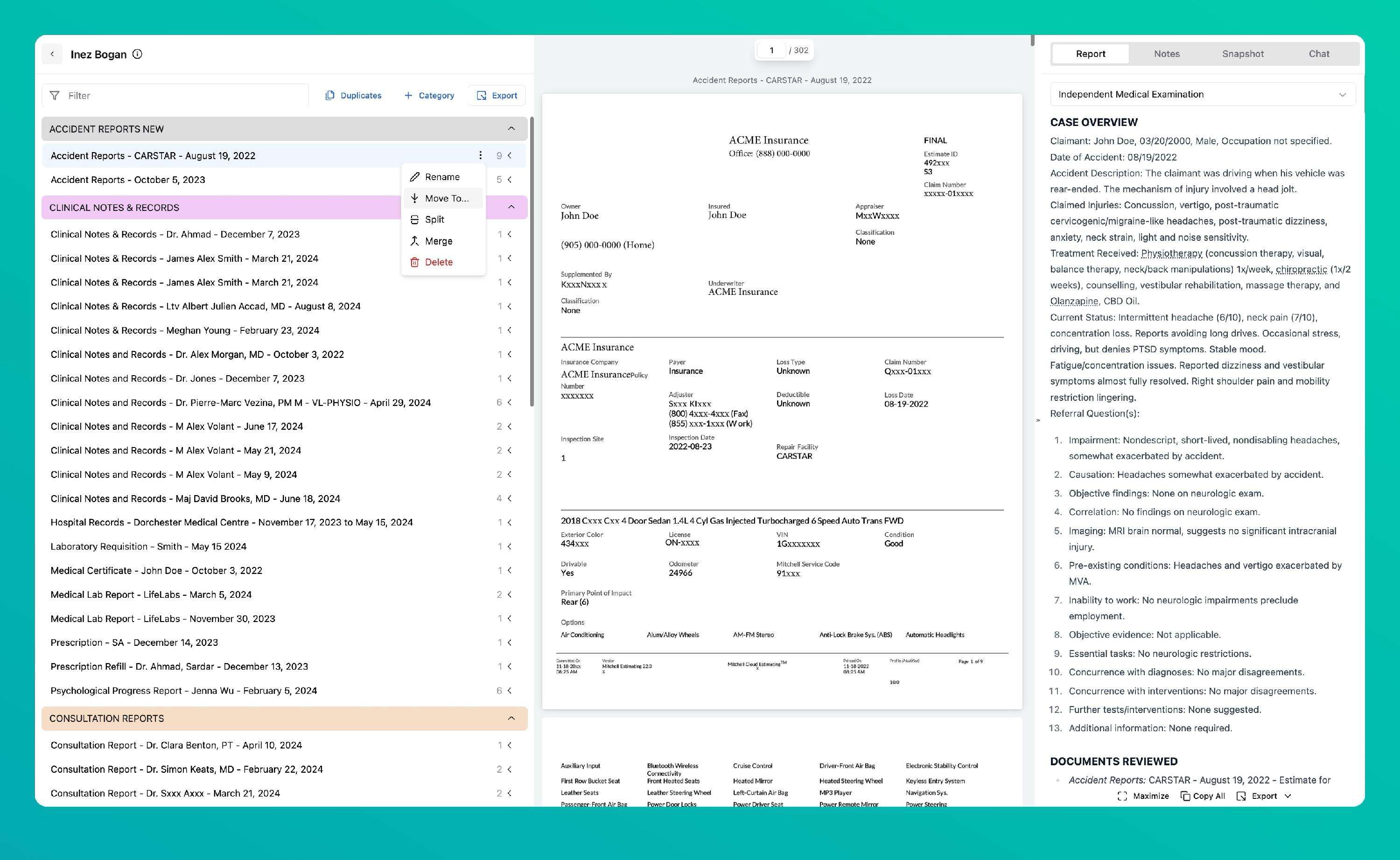
Step 5: Move Section
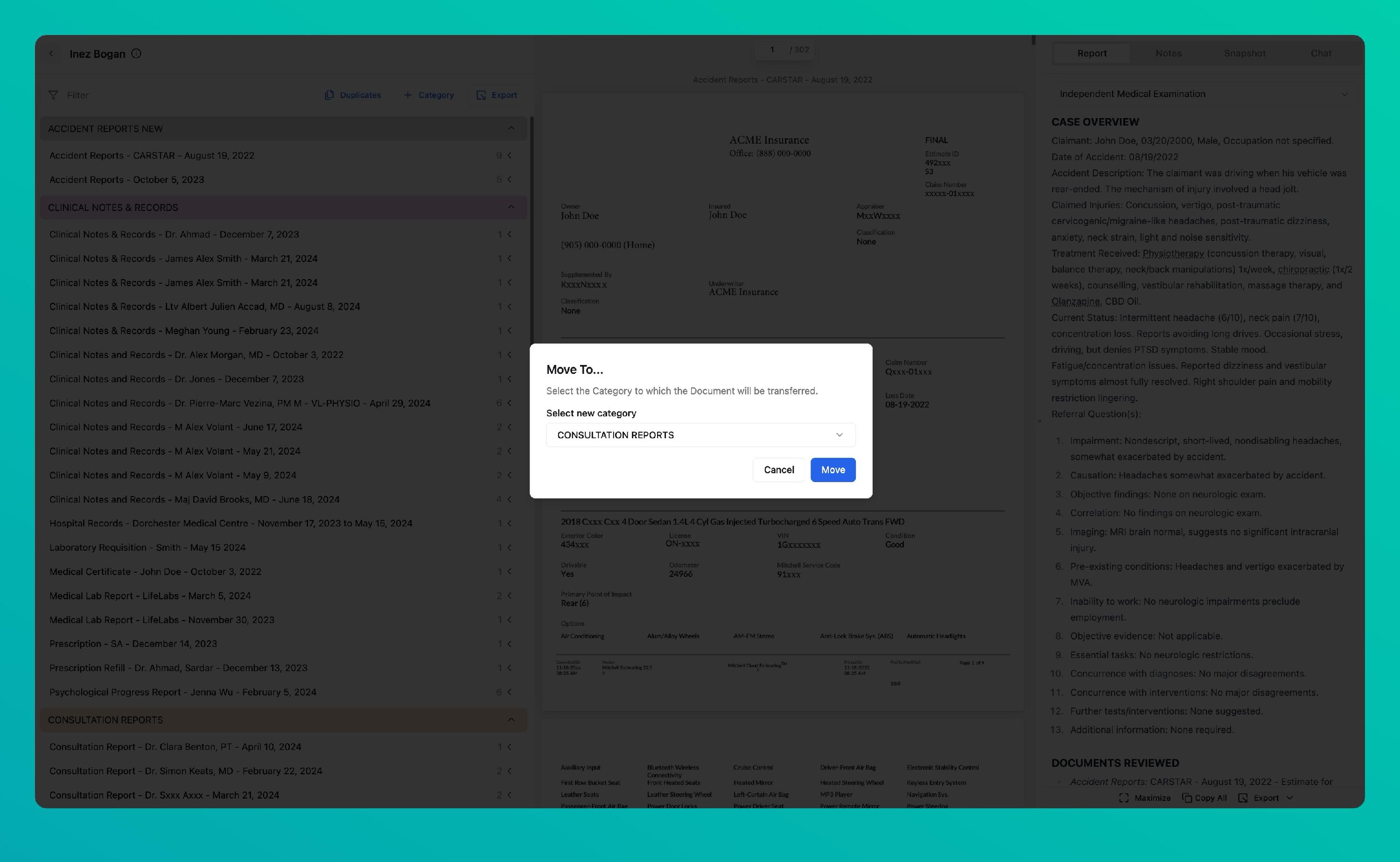
Click the ⋯ next to a section and select Move To… to reassign it to another category. This helps keep related documents grouped logically.
Step 6: Select New Category
Choose a new category from the dropdown list. The section will automatically appear under the selected category in the document list.
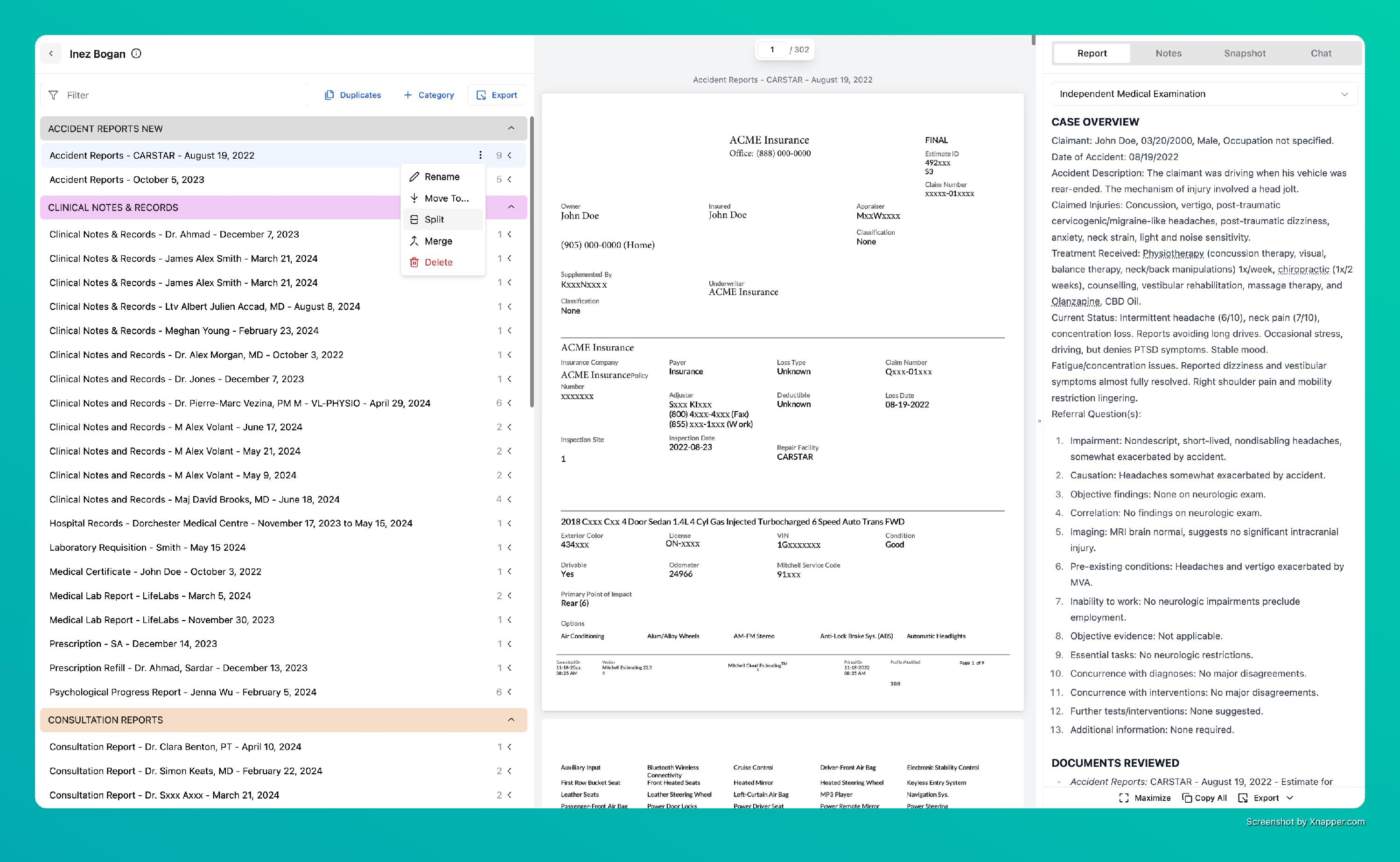
Step 7: Split Document
Click the ⋯ next to a section and select Split to divide a document into two parts. This is useful for separating multiple reports or forms contained in a single file.
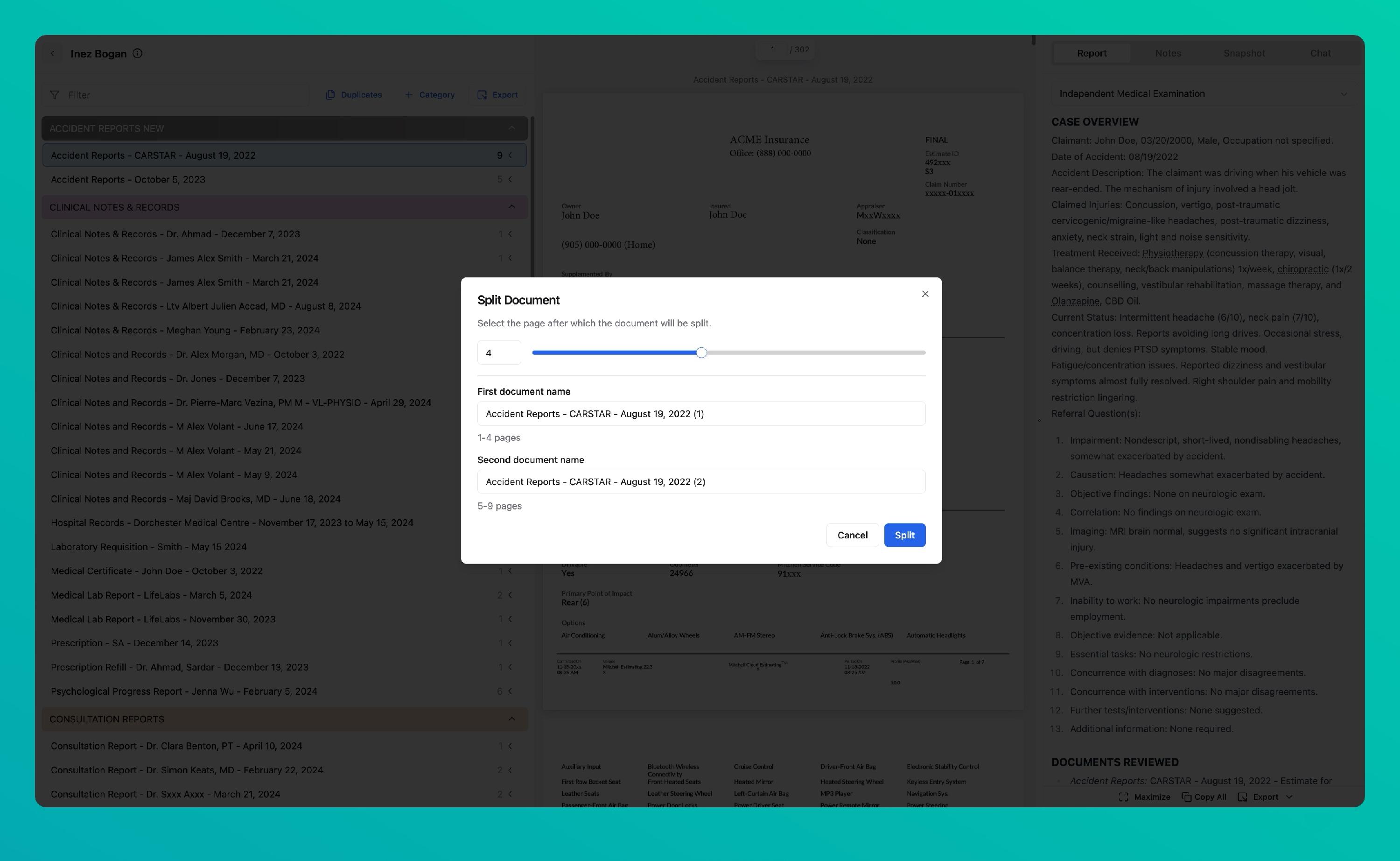
Step 8: Configure Split
Choose the page number after which the split should occur and update the names for both resulting documents. Confirm the operation to finalize the split.
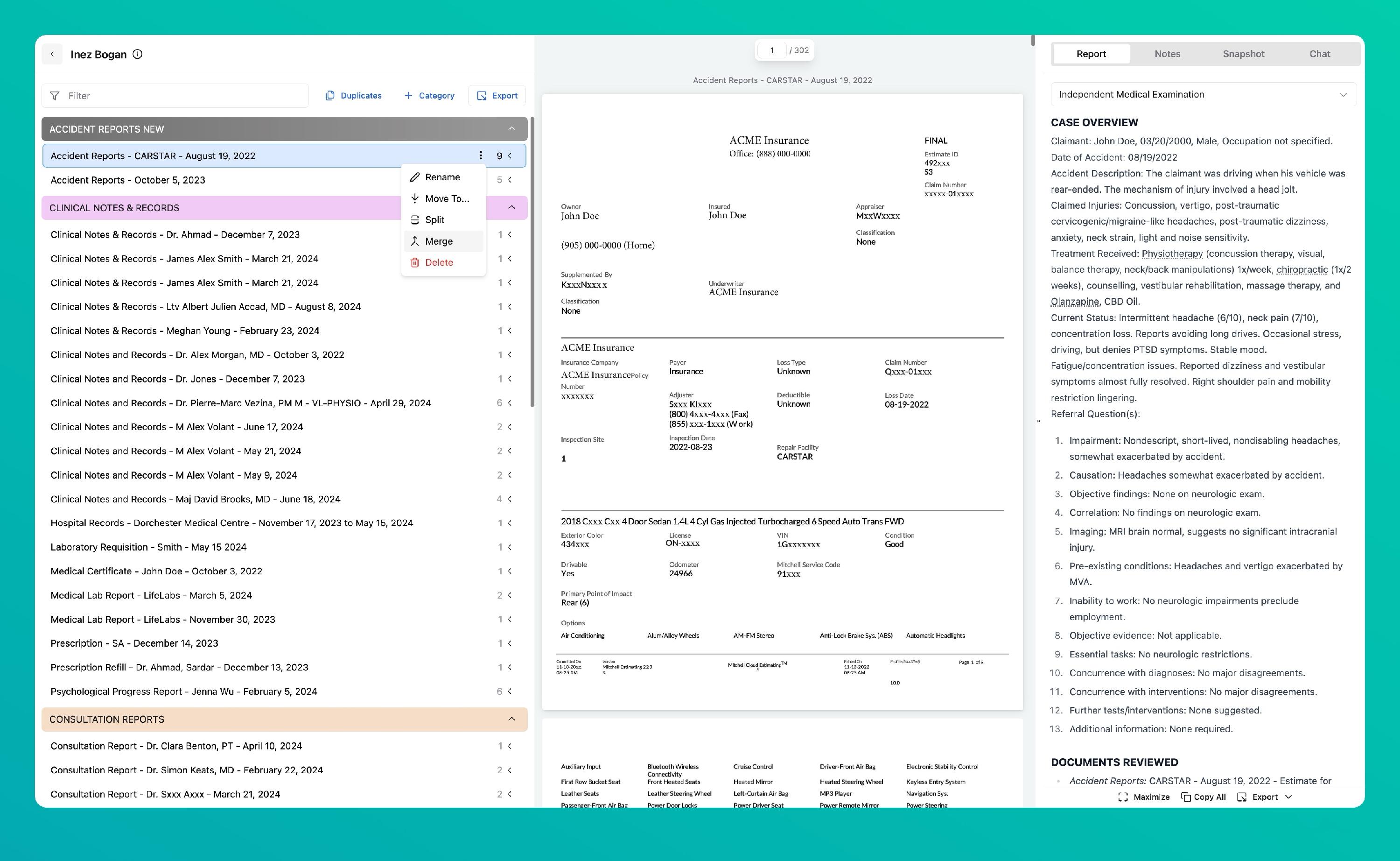
Step 9: Merge Documents
Click the ⋯ next to a section and select Merge to combine two or more documents. This feature is ideal for unifying related pages or scanned materials.
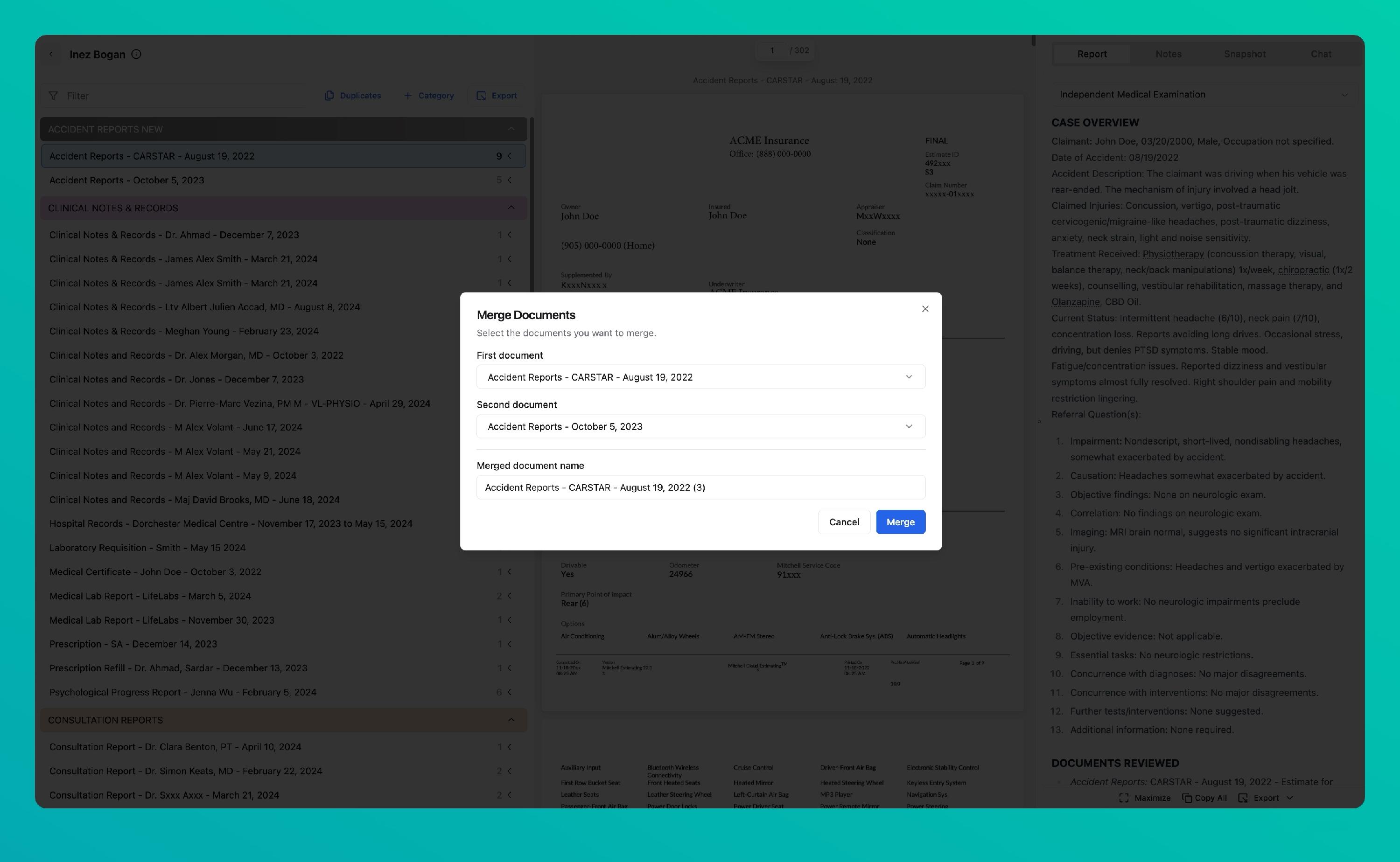
Step 10: Configure Merge
Select the documents you want to merge and enter a name for the combined file. Once complete, the new merged document will appear in the list.
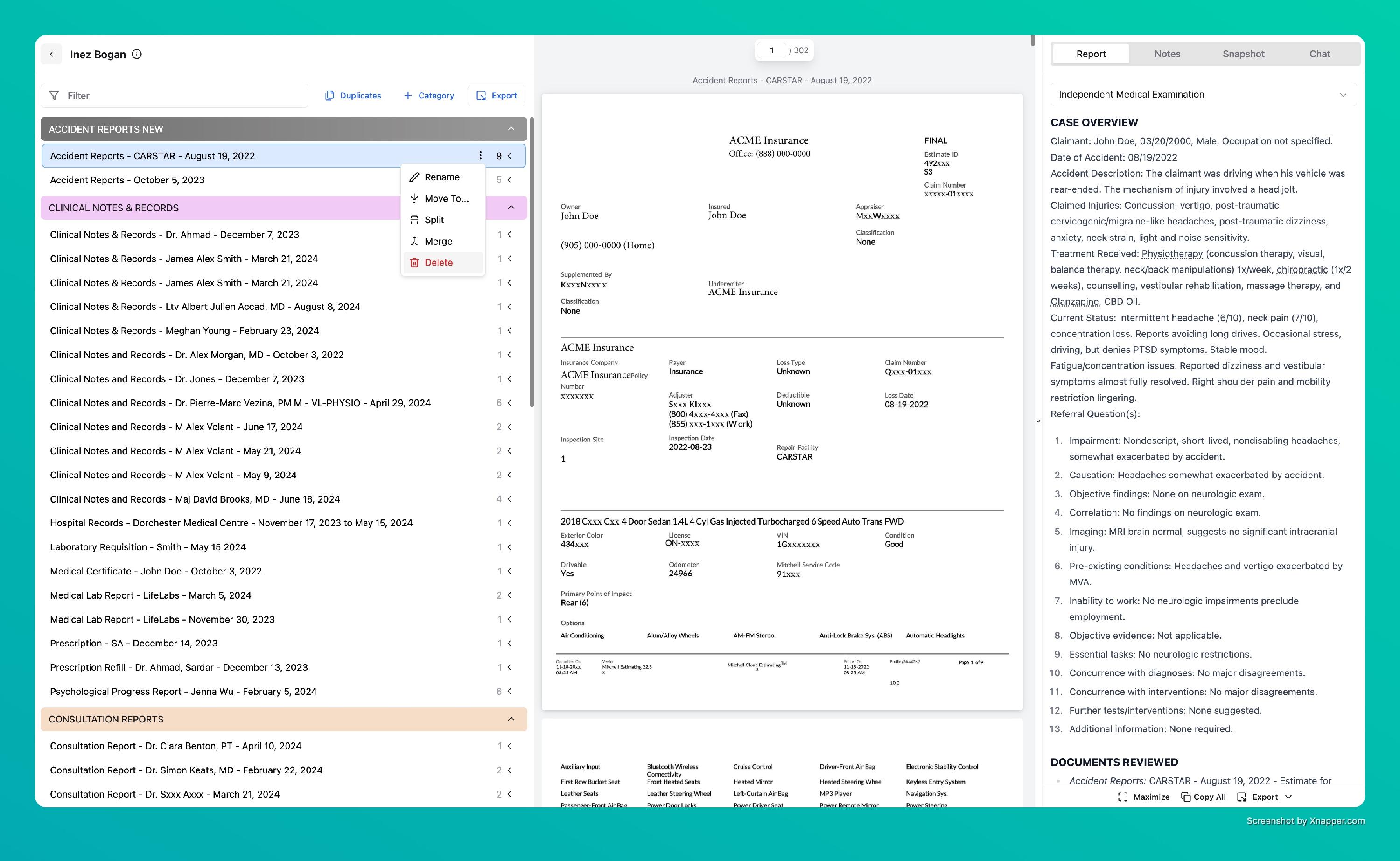
Step 11: Delete Section
Click the ⋯ next to a section and select Delete to remove it from the document list. Confirm the action when prompted. Deleted sections cannot be recovered.
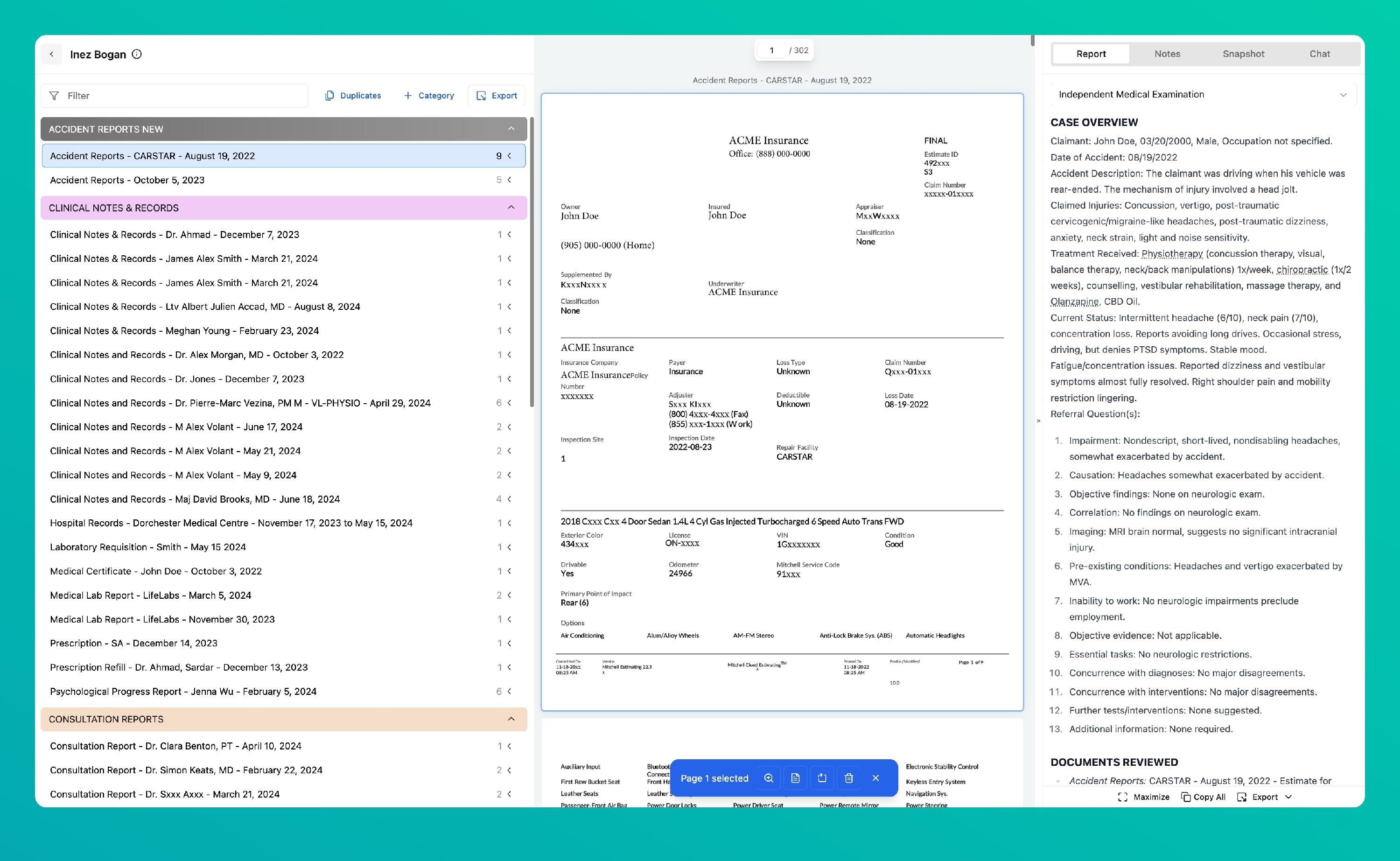
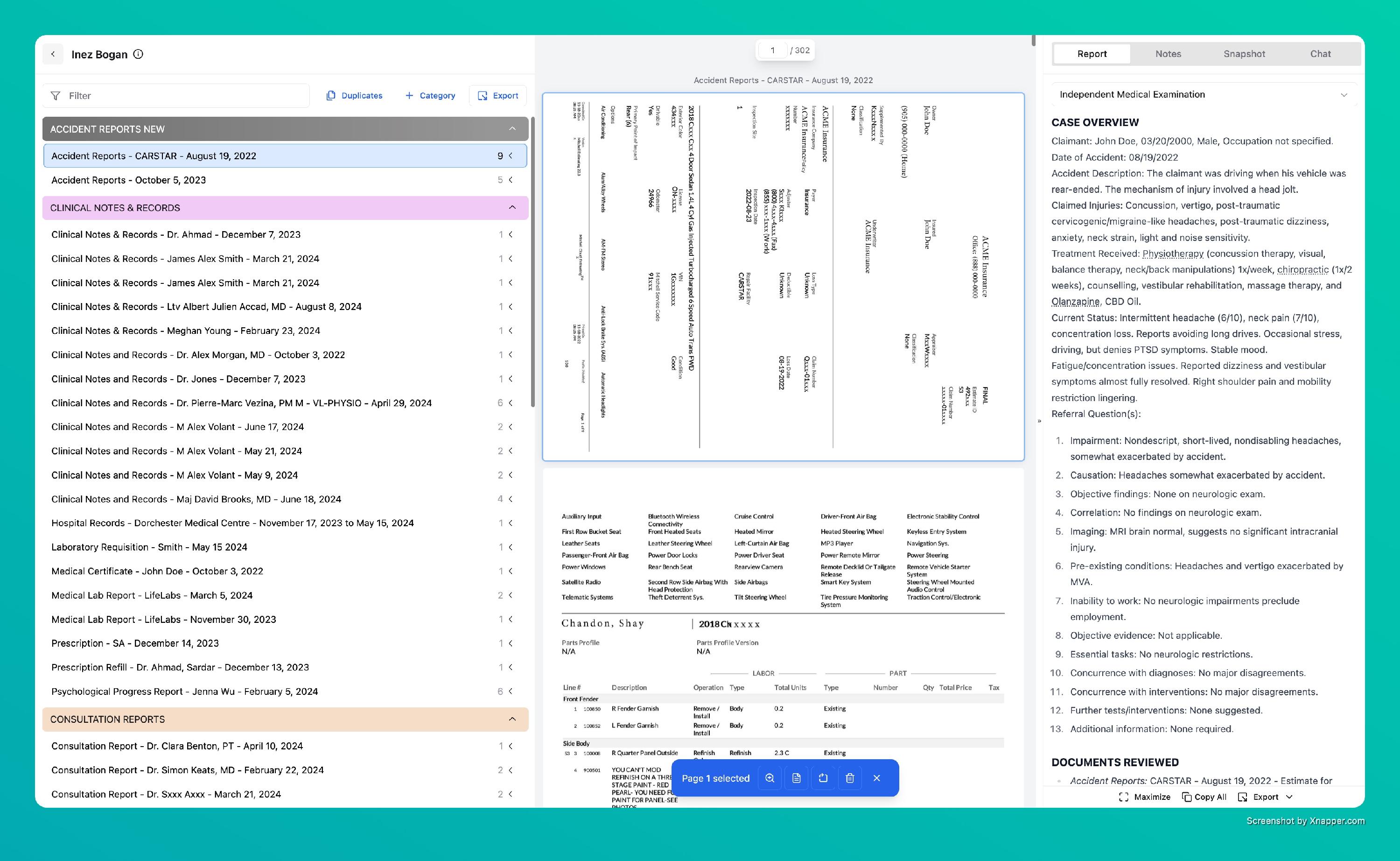
Step 12: Open Page Toolbar
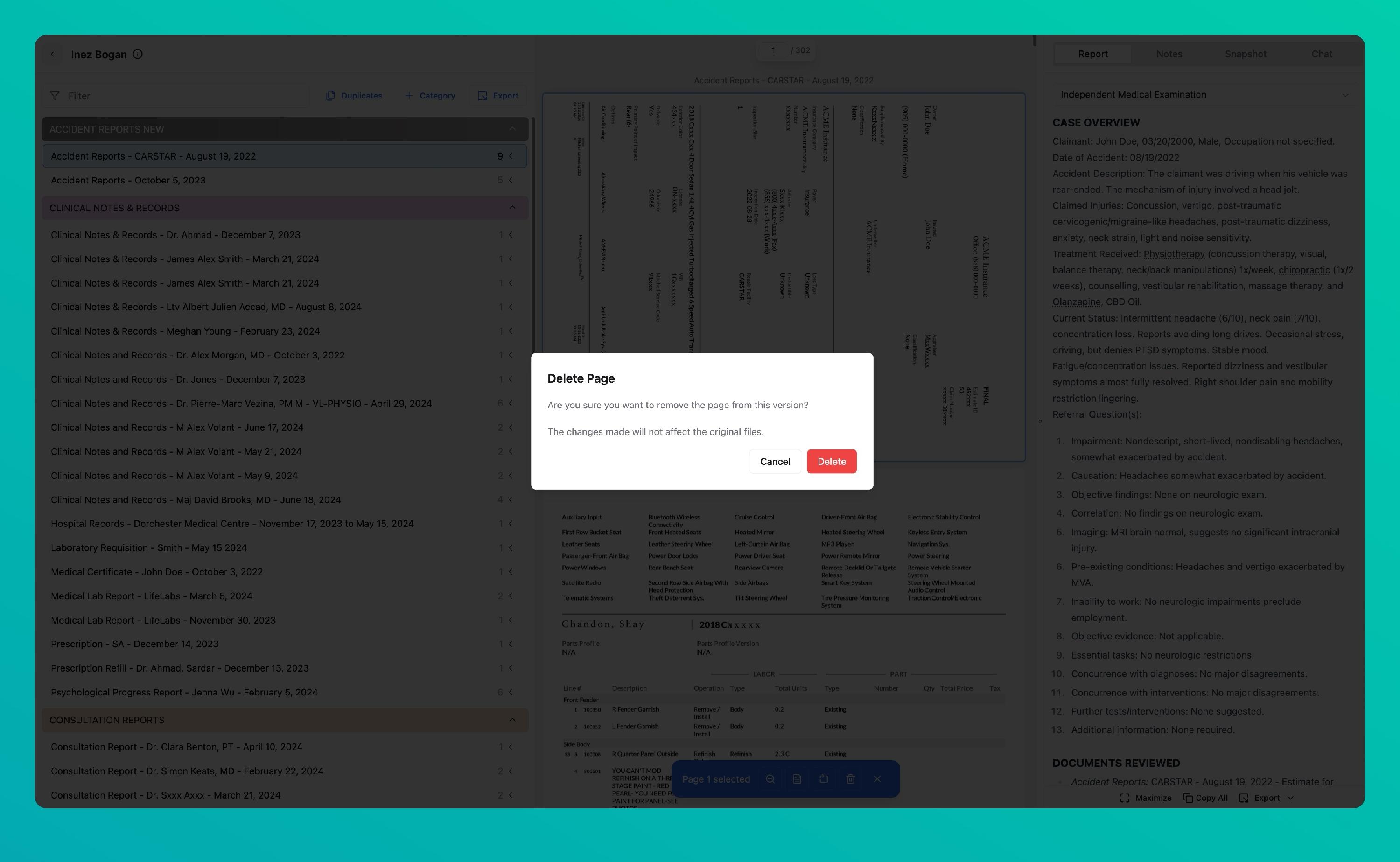
Click on any page thumbnail to open the page toolbar, which provides tools for zooming, rotating, text recognition, and page deletion.
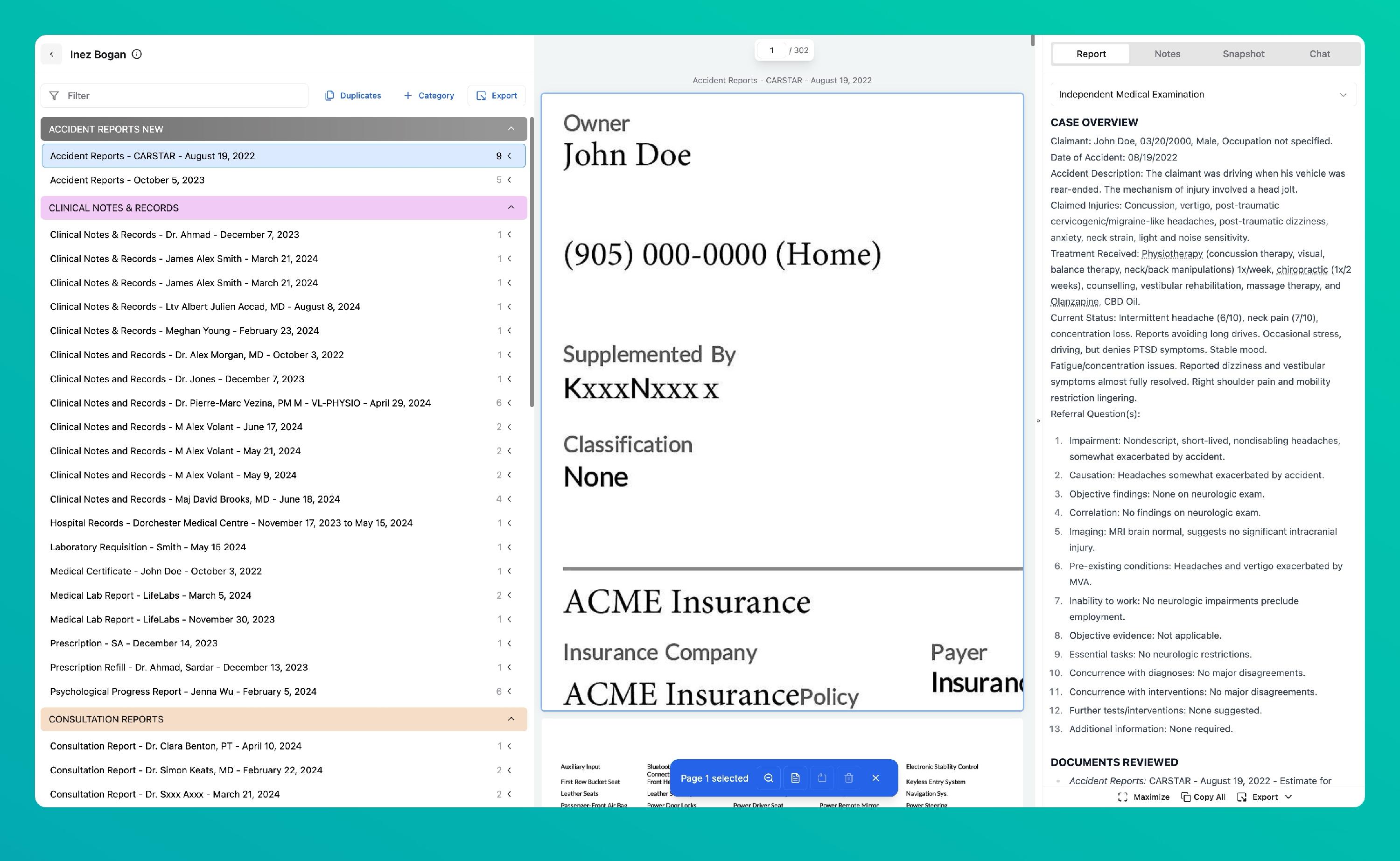
Step 13: Zoom In
Click Zoom In to enlarge the page content for detailed review. Use Zoom Out to return to the standard view.
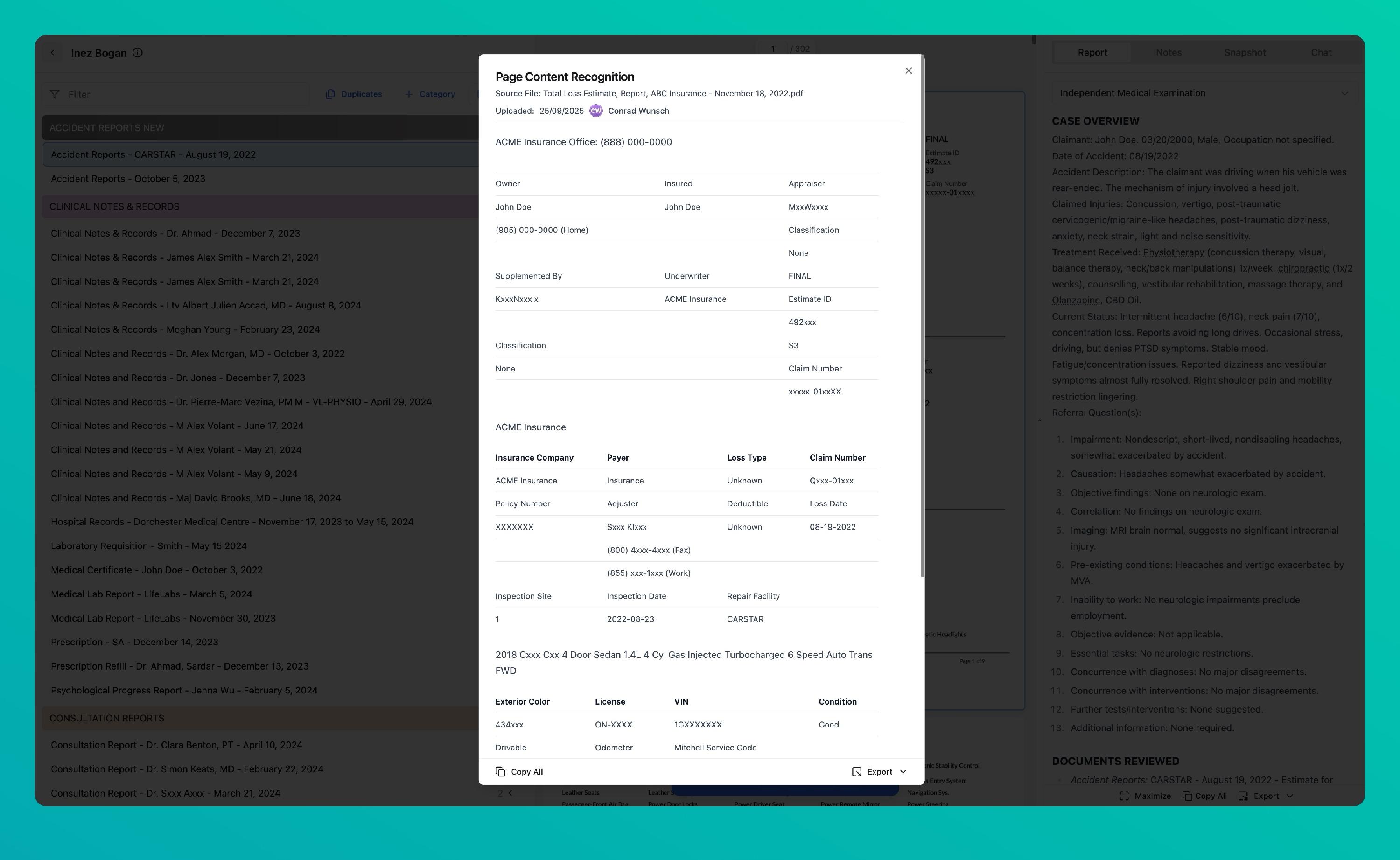
Step 14: Recognize Text (OCR)
Click Recognize Text to run optical character recognition. Sky will extract readable text from the scanned page and display it alongside the document.
Step 15: Rotate Page
Click Rotate to adjust the page orientation clockwise or counterclockwise. The change is saved automatically.
Step 16: Delete Page
Click Delete Page to permanently remove an individual page from the document. The remaining pages are automatically renumbered.