
How to Add Documents to Version?
Adding documents to a version helps you keep your case files organized and up to date. Follow these simple steps to attach documents to the right version.
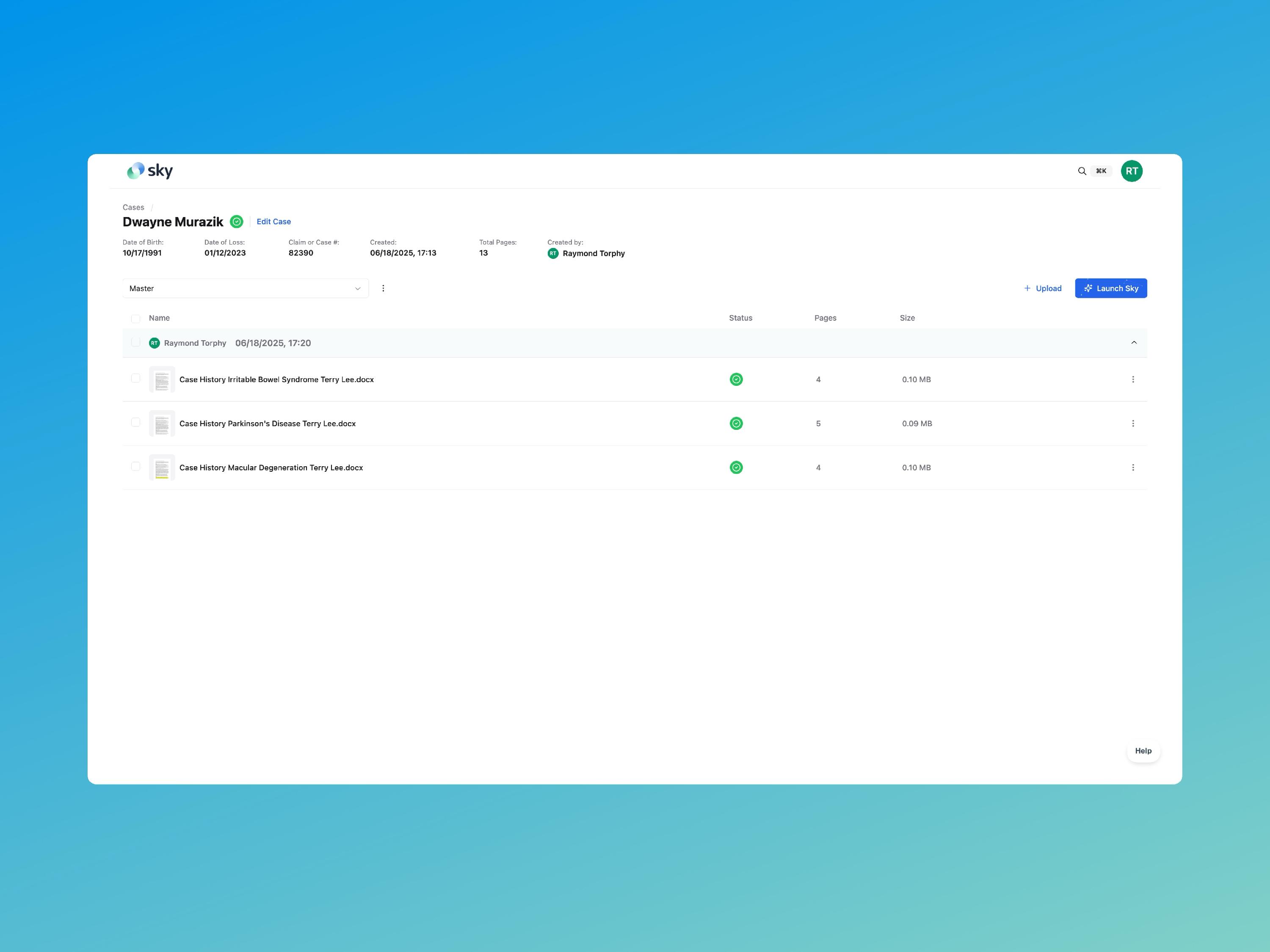
Step 1: Select the Document
Go to your case’s document list and check the box next to the file you want to add to a version.
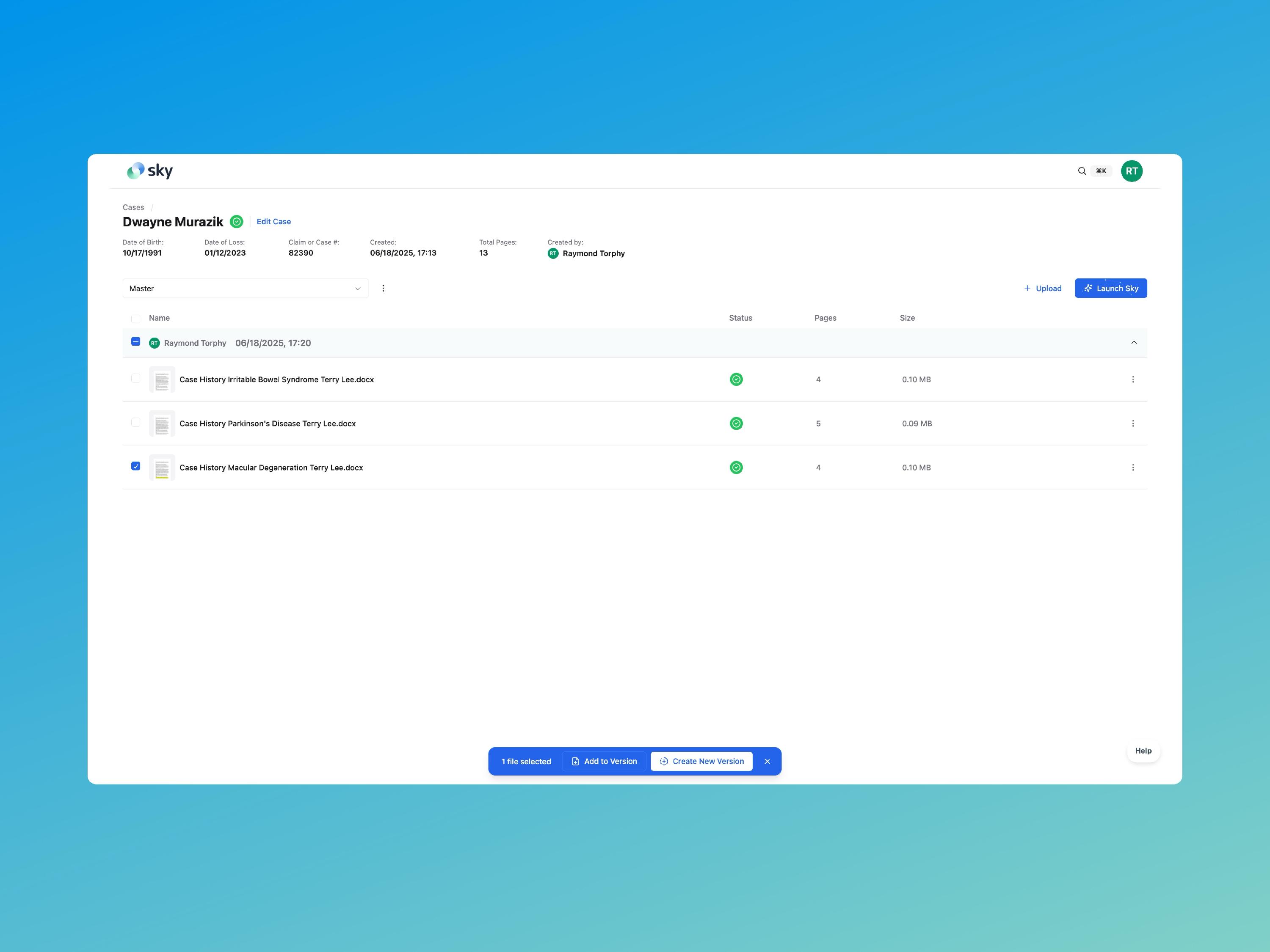
Step 2: Click Add to Version
Once selected, click the Add to Version button at the bottom of the page.
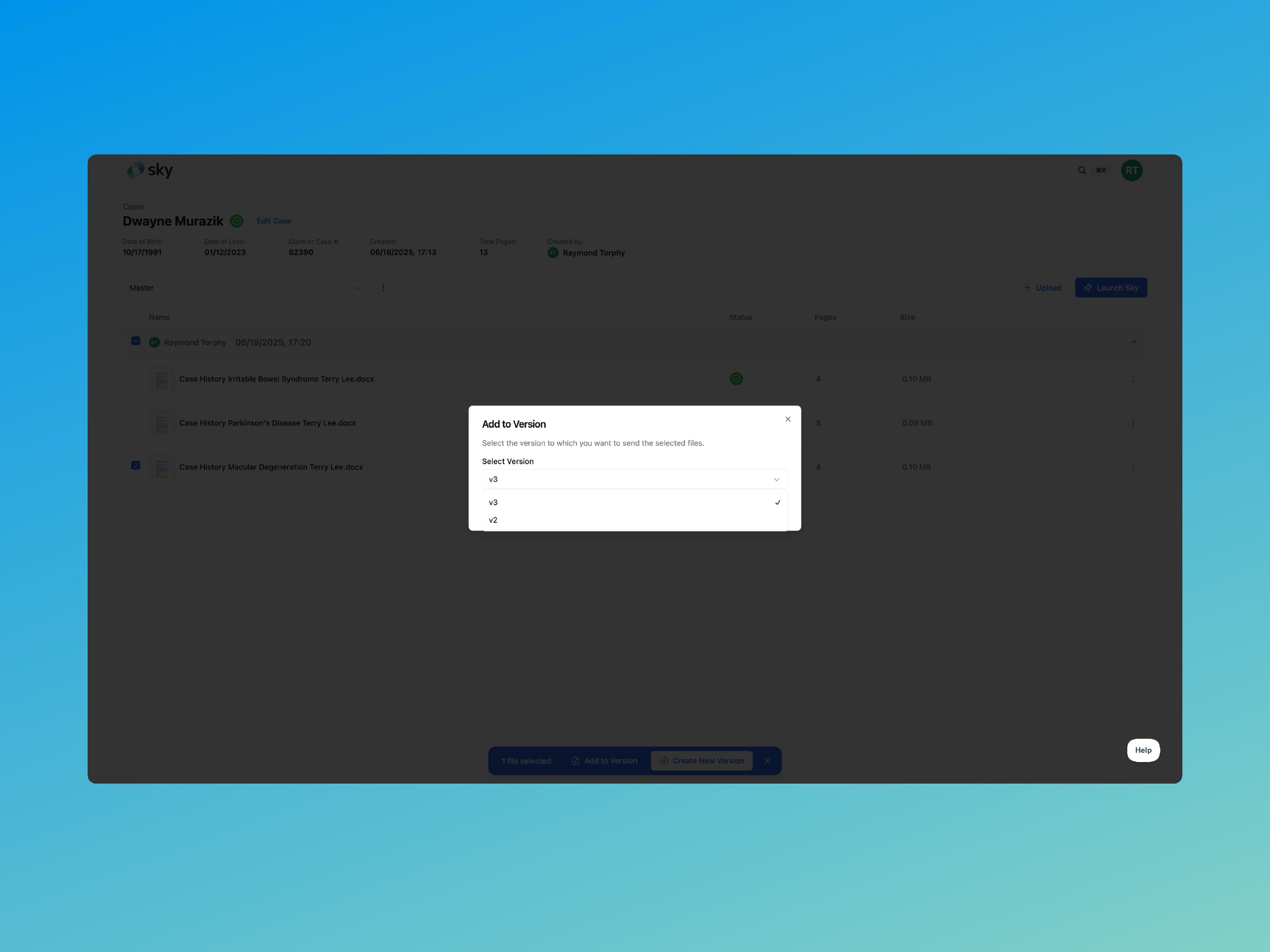
Step 3: Choose the Version
In the Add to Version pop-up, pick the version from the dropdown list. Then click Send Files to confirm.
Step 4: Confirm and View
After sending, you’ll be taken to the version page where you’ll see the document added to the version.
By using versions, you can manage document history and updates without losing previous work.