
How to Use the Chat Feature in the Case Page and for Individual Documents
The Chat feature is designed to enhance your workflow by allowing users to interact with AI directly to ask questions, summarize documents, and generate insights. Here's a step-by-step guide to using this feature within a case and for each document.
Accessing the Chat Feature
Within a Case:
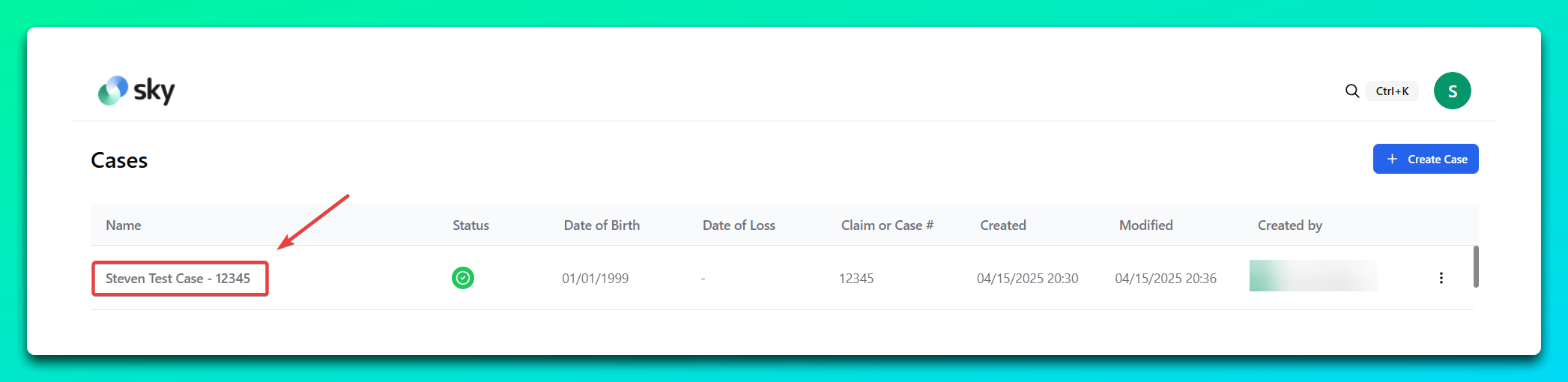
- Navigate to the desired case.
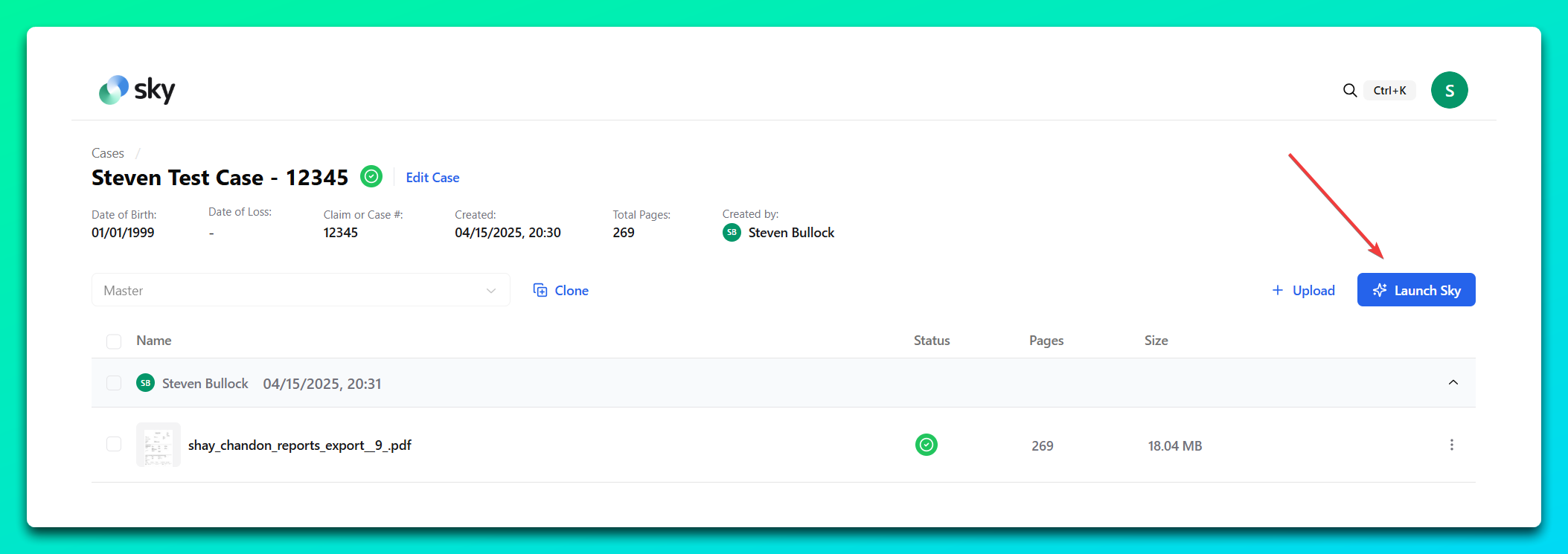
- Click the "Launch Sky" button in the top-right corner of the case page to access the detailed document view.
- Once the document list appears, select a document to interact with.
For a Specific Document:
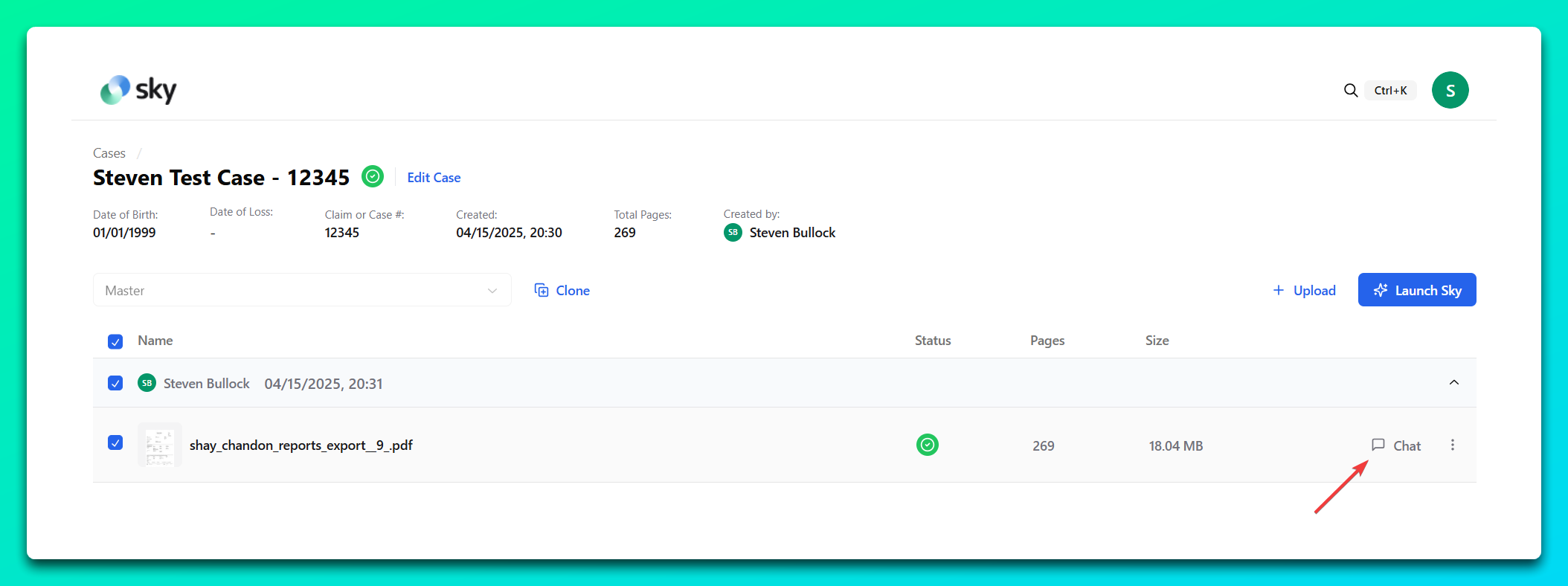
- Within the document list, locate the document you'd like to analyze or discuss.
- Click the "Chat" icon next to the document to open the Chat panel.
Using the Chat Feature
Ask General Questions:
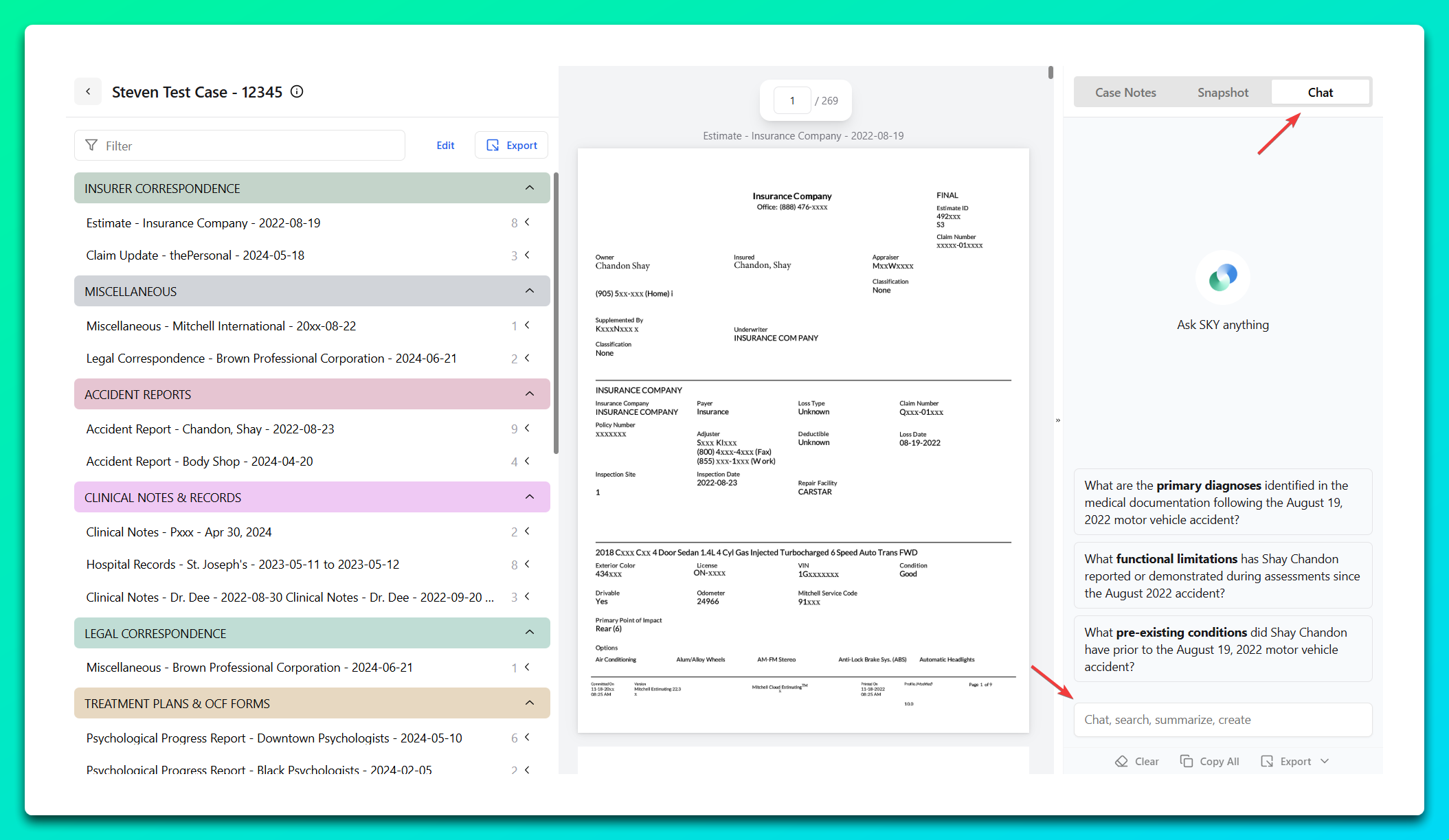
- On the right-hand panel of the Chat section, use the provided field to type any question related to the case or the selected document.
- Example questions include:
- "What specific symptoms were reported in this document?"
- "Summarize the key findings of this report."
- "What improvements are noted for patient/client in this case?"
Generate Summaries:
- In the Chat view, ask for a summary of the entire document or a specific section.
- For example: "Summarize the psychiatric assessment section."
Explore Insights:
- Use Chat to gain insights, such as diagnosis comparisons or progress over time.
- For example: "Compare the findings in this document to the initial report in 2022."
Interactive Suggestions:
- When reviewing a document, Chat may provide suggestions for queries, displayed in the chat area as clickable options. Click on these to quickly get answers.
Tips for Effective Use
- Be Specific: The more detailed your question, the more precise the answer.
- Combine Features: Use the Snapshot or Summary tabs alongside Chat for a comprehensive view.
- Explore: Let the AI suggest related queries to deepen your analysis.
- Export: Download the summary or insights generated in Chat for future reference or sharing.
The Chat feature is your assistant for navigating and understanding complex cases and documents efficiently. With these steps, you can leverage its full potential for improved productivity and insight generation.